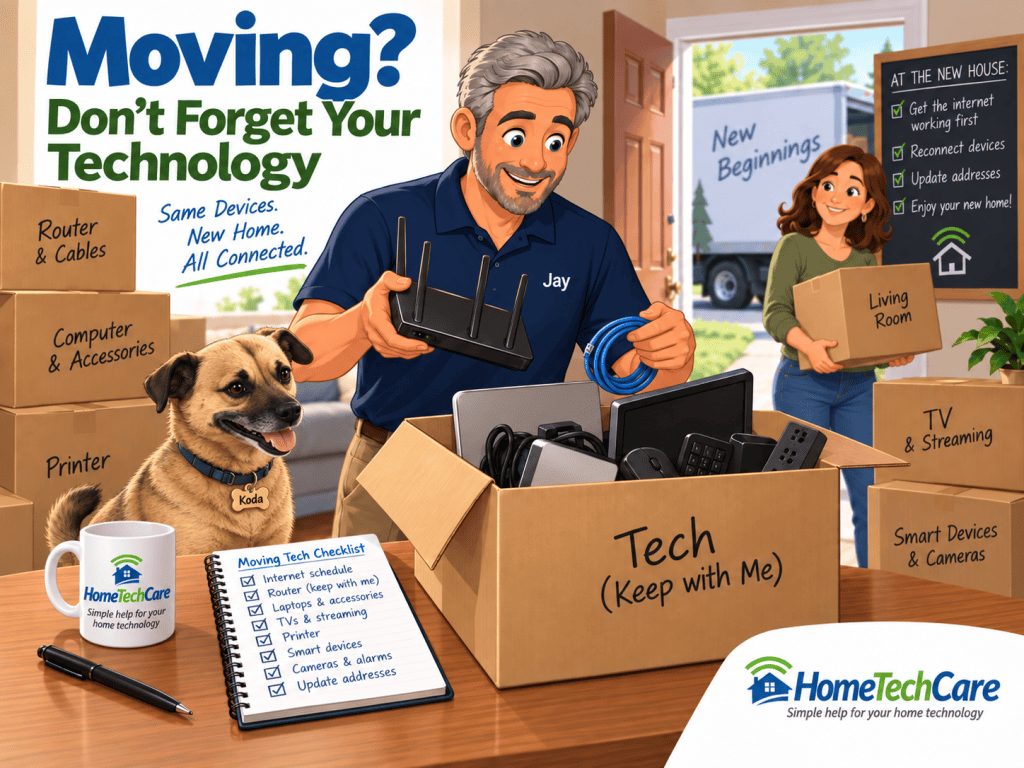
Moving is a good reminder of just how much technology has quietly become part of everyday life.
The TV is no longer just a TV. It may depend on Wi-Fi, a streaming device, a couple of passwords and several subscriptions. The printer remembers your old wireless network. Cameras, doorbells and smart devices may still think they live at your old address. Your computer setup may involve a laptop, monitors, a hub, external devices, power strips and a collection of cables and adapters.
None of these things is especially difficult by itself. The problem is that, during a move, they all seem to need attention at the same time.
We recently moved from the Tri-Cities in Washington to Wilsonville, Oregon, and it gave me a fresh reminder that technology deserves its own place on the moving checklist.
Start With the Internet Before You Move
For most homes, the internet connection is the first domino. Once it is working, everything else can start finding its way home.
I contacted Ziply about two weeks before our move to find out what our options were at the new address. Fortunately, I was able to carry over our existing account, keep the same rate and actually get more speed at the new house.
We moved in on a Saturday, and the installation was scheduled for the following Monday. That meant we were only without our normal internet service for a couple of days.
Ziply told me to bring our wireless router with us, so I made sure it did not disappear into a moving box. The technician added the new equipment that was needed at the house, connected everything and got us up and running quickly. I later returned the old equipment that was no longer needed.
The technician was quick and professional, but the most important part of the process happened before he arrived: I had already made the arrangements.
Before moving, it is worth asking your internet provider a few questions:
- Can your existing account move with you?
- Will your current price or plan carry over?
- Is the same level of service available at the new address?
- Should you bring your current modem or router?
- Will new equipment be installed?
- Does any old equipment need to be returned?
- How soon after move-in can the installation be scheduled?
Do not assume that the answers will be the same from one address to another.
Pack a First-Day Technology Box
One of the best decisions I made was keeping my main computer equipment together and carrying it with me rather than sending it with the rest of the household goods.
I packed my laptop, monitors, keyboard, mouse, hub, cables, surge-protected multi-outlet strips, printer and AC adapters together and carried the box with me on the four-hour drive.
That did two things.
First, I knew the equipment was being handled carefully.
Second, once the internet was working, I already had everything I needed to get my workspace running again. I did not have to search through a garage or a house full of boxes looking for one missing power adapter.
You do not have to carry every electronic device yourself, but it is worth thinking about which technology you will want during the first day or two in the new house.
A first-day technology box might include your:
- Laptop or essential computer equipment
- Keyboard and mouse
- Monitor cables
- Dock or hub
- Router
- Chargers and AC adapters
- Surge protectors or power strips
- Printer
- TV remotes
- Specialty cables you know you will need
Labeling cords before the move can also save a surprising amount of time later.
Take Pictures Before Disconnecting Everything
If you have a group of devices connected together, take a picture before unplugging anything.
A photo of the back of a television, computer, router or entertainment system can be far more useful than trying to remember which cable went where two days later.
You can also label cables with simple pieces of tape.
“Monitor.”
“Printer.”
“TV HDMI.”
“Router power.”
It may seem unnecessary while everything is still connected and obvious. It will not seem unnecessary when you are standing in the new house holding six black cables that all look exactly the same.
Get the Network Working First
Once you arrive, resist the temptation to start reconnecting every electronic device at once.
Get the internet connection working first.
Then get your Wi-Fi working properly.
After that, reconnect things in a sensible order:
- Computers and phones
- TVs and streaming devices
- Printers
- Smart speakers and home devices
- Cameras and doorbells
- Security or alarm equipment
Trying to troubleshoot a television, printer and doorbell before you know the Wi-Fi is working properly only creates more confusion.
Remember That Devices Know Your Old Wi-Fi
Many devices remember the name and password of your old wireless network.
That is why moving can sometimes make perfectly good equipment suddenly appear “broken.”
Printers are a common example. A printer that worked perfectly at the old house may simply be waiting for a Wi-Fi network that no longer exists.
The same thing can happen with:
- Smart TVs
- Streaming devices
- Smart plugs
- Doorbells
- Cameras
- Thermostats
- Speakers
- Garage door controllers
- Security devices
In some cases, keeping the same Wi-Fi network name and password can make the move easier because many devices may reconnect automatically.
In other cases, especially when changing equipment or providers, reconnecting the devices one at a time may be the better choice.
Some Technology Has an Address
There is another moving detail that is easy to overlook: some technology stores your physical location.
After a move, check the address or home location in devices and services such as:
- Smart speakers
- Security systems
- Cameras
- Doorbells
- Home automation apps
- Weather apps
- Delivery services
- Streaming accounts
- Emergency calling services
A smart speaker that still thinks it lives in your old city may give you the wrong weather or local information.
Security cameras may need new activity zones.
A video doorbell may need its home address updated.
And some internet-based phone or emergency services rely on the correct physical address being stored in the account.
Moving Is Also a Good Time to Simplify
A move gives you a natural opportunity to look at your technology with fresh eyes.
Do you still need every streaming box?
Do you know what every power adapter belongs to?
Are there old cables you have not used in five years?
Is your router sitting in a poor location simply because that is where it happened to be installed years ago?
Do you have devices you no longer use but continue to pay subscriptions for?
Instead of recreating the old setup exactly as it was, this can be a good time to improve it.
A better router location might improve Wi-Fi coverage.
Removing unused equipment might reduce clutter.
A simpler streaming setup might eliminate an extra remote.
And documenting important passwords and account information now can make future problems much easier to solve.
Technology Has Become Part of the House
Years ago, moving technology might have meant carrying the television and plugging in the telephone.
Today, a home may have dozens of connected devices, multiple accounts, several networks and equipment that depends on other equipment before it will work.
That does not mean moving your technology has to be complicated.
Plan the internet connection before the move.
Keep the important equipment together.
Take pictures before disconnecting things.
Get the network working before troubleshooting individual devices.
And remember that some devices need more than a power cord. They may also need a new network, password, account setting or home address.
A little planning before moving day can turn what could be a frustrating weekend of reconnecting technology into a much more manageable process.
And perhaps most importantly, you may not need to buy anything new.
Sometimes the technology you already own simply needs a little help finding its new home.


Leave a Reply